Auto Recharge
The Auto Recharge feature helps you maintain uninterrupted service by automatically adding credits to your account when your balance falls below a set threshold. This ensures you never run into disruptions due to insufficient credits.
How Auto Recharge Works
- When your account credits fall below the specified threshold, your default payment card will be automatically charged.
- The selected recharge amount will be instantly added to your account credits.
- You can enable or disable auto recharge at any time from the Auto Recharge page.
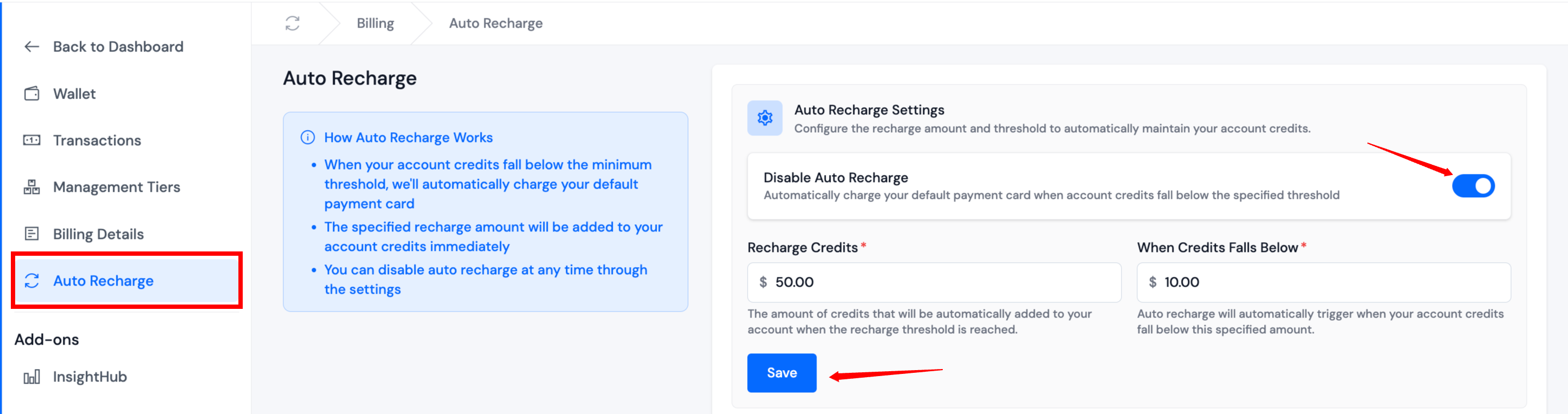
Auto Recharge Settings
In the Auto Recharge Settings section, you can:
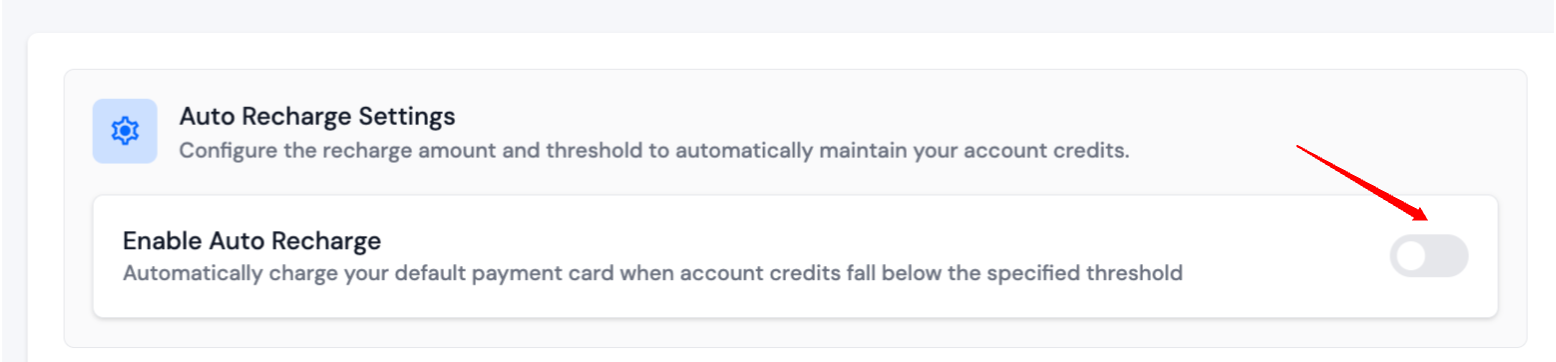
- Enable or disable auto recharge using the toggle switch.
- Set the Recharge Credits amount (how much will be recharged each time).
- Define the Threshold (
When Credits Falls Below) that triggers the auto recharge.
For example:
- Recharge Credits:
$50.00 - When Credits Falls Below:
$10.00
In this case, when your credits drop below $10, the system will automatically charge $50 to your default payment card and add it to your account.
Payment Methods
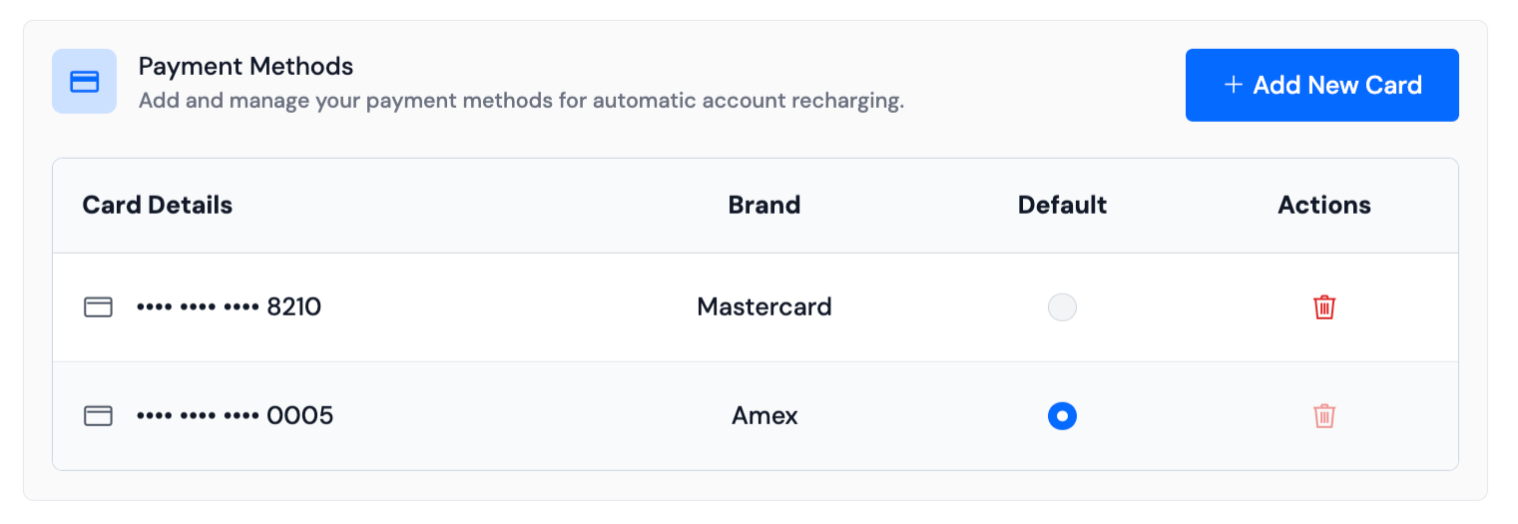
You can manage your payment methods for auto recharge under the Payment Methods section:
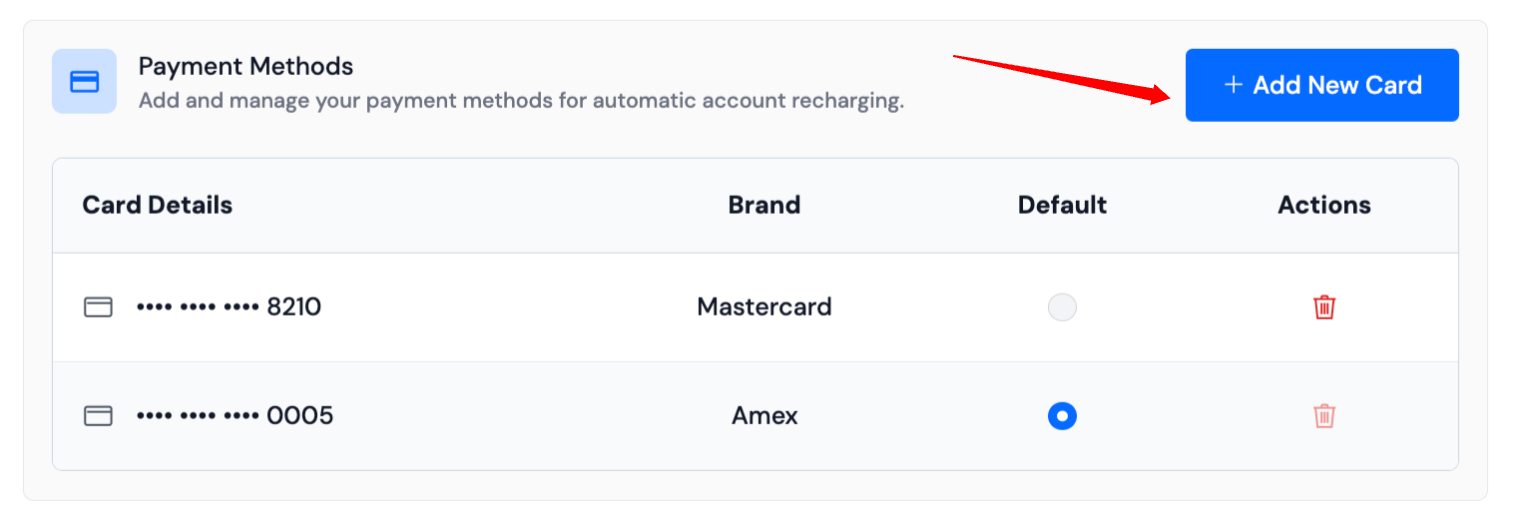
Add New Card
- Click on the Add New Card button.
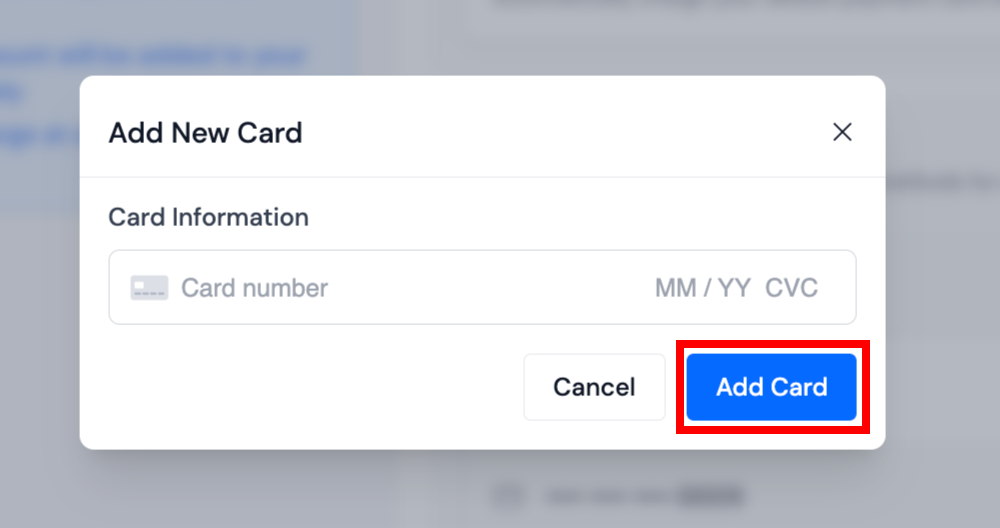
- Enter your card details securely.
- Once added, the card will appear in the payment methods list.
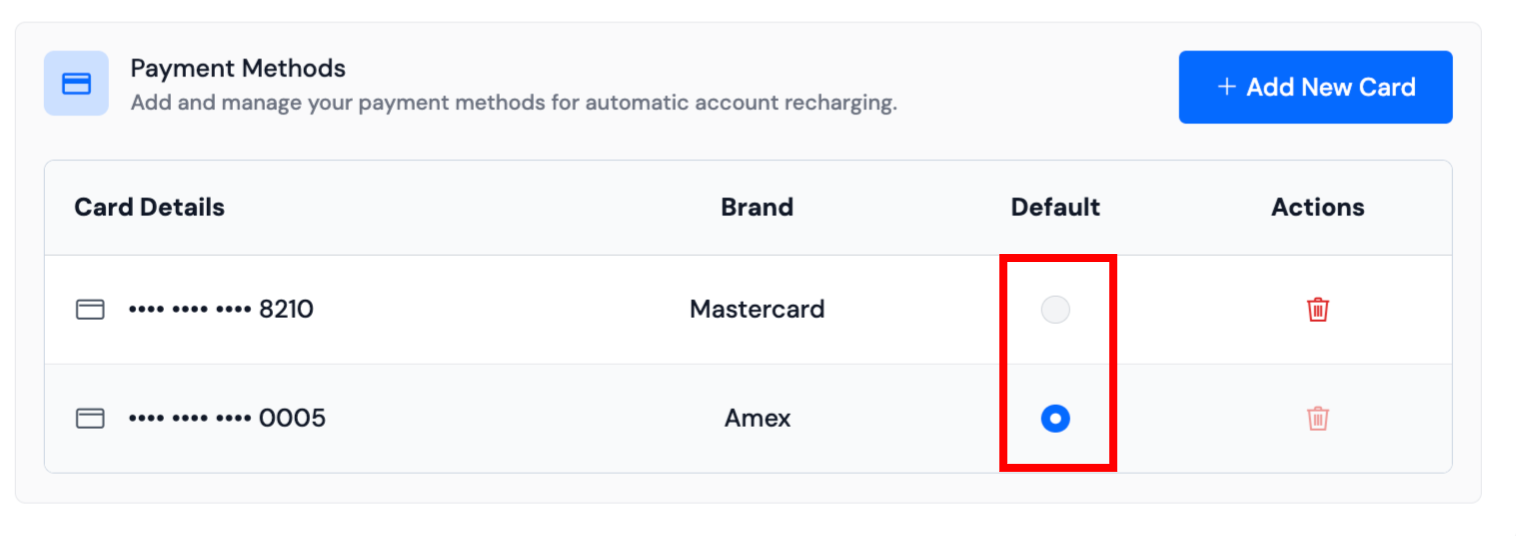
Set Default Card
- Only one card can be selected as the default card.
- Auto recharge will always use the default card.
- To change, select the Radio button of another card to set it as the default.
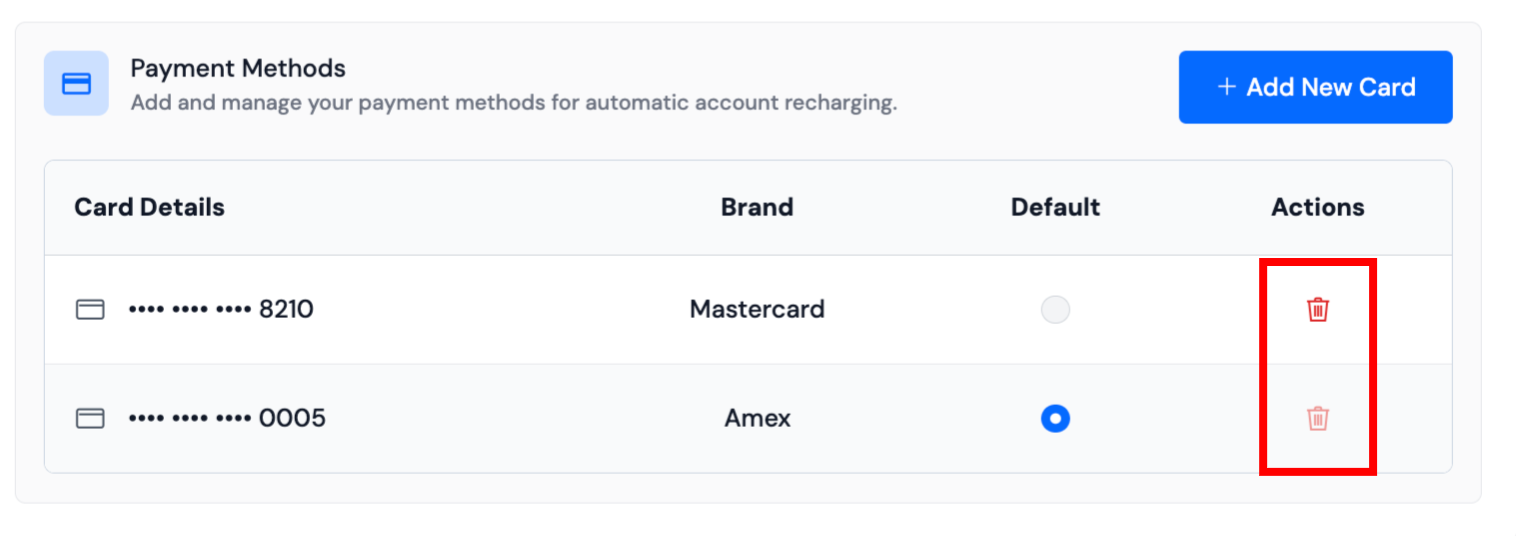
Remove Card
- You can delete a card from your saved payment methods by clicking the delete icon next to the card.
- The default card cannot be removed until another card is set as default.
info
A card marked as default cannot be removed. You must first set another card as the default before deleting it.
Disabling Auto Recharge
If you prefer to manage your credits manually:
- Simply Disable Auto Recharge from the Auto Recharge Settings.
- You can re-enable it at any time.
Key Notes
- Auto Recharge ensures continuous service without interruptions.
- The recharge amount and threshold are completely configurable.
- You’ll always have control — enable, disable, or update your preferences anytime.